

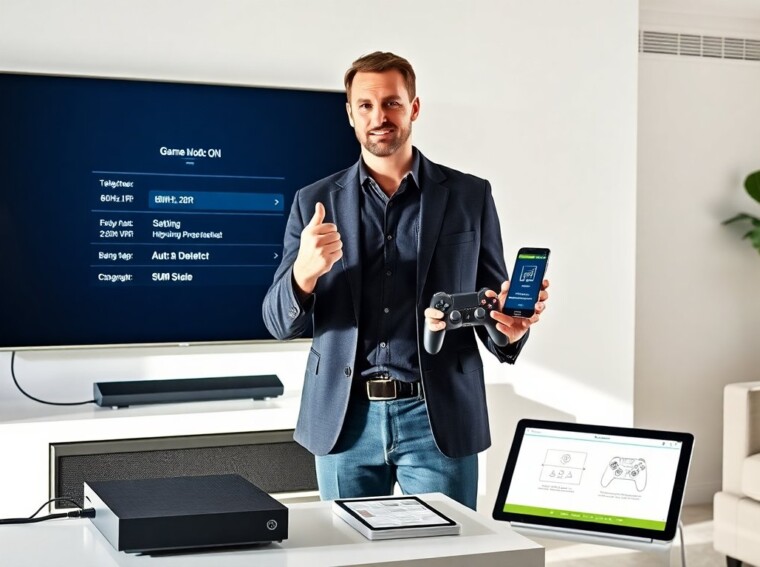
Many users see game mode turned on by your gaming console as soon as they start a title. The console detects the app and sends a signal to the display. The display then switches to a lower-latency mode. This change aims to reduce input lag and improve frame pacing. The following sections explain what this signal does, when it helps, and how they can control it.
Key Takeaways
- Game mode turned on by your gaming console reduces input lag by disabling post-processing and shortening frame buffering for smoother gameplay.
- The console sends an HDMI signal to automatically activate game mode, but users can disable this feature if desired through console or TV settings.
- While game mode improves responsiveness and reduces motion interpolation, it might decrease color vibrancy and alter sharpness, affecting image quality in some games or media.
- To optimize performance, users should update firmware, use high-speed HDMI cables, and match console output settings with their TV’s native resolution and refresh rate.
- Managing game mode manually or using separate display profiles for gaming and media helps maintain the best balance between responsiveness and image quality.
- Consulting the TV vendor’s notes and possibly using HDMI splitters can help control automatic game mode activation and preserve desired picture settings.
What Console‑Triggered Game Mode Means And How It Works
A console sends a short message over HDMI when it runs a game. The message uses a standard called HDMI Vendor Specific InfoFrame or the more recent HDMI Forum features. The display reads the message and activates its game mode profile. Game mode turned on by your gaming console usually disables post-processing on the TV. The TV then reduces image smoothing, motion processing, and some noise reduction. The display also shortens internal frame buffering. The result lowers input lag. The console can also change output resolution or refresh rate to match the game. Many consoles offer an auto-detect option in their video or display settings. The console lists options such as 60Hz, 120Hz, VRR, and HDR. When this option is enabled, the console sends a clear command. The display reacts instantly and toggles the matching profile. The process takes less than a second most of the time. Some older displays do not respond to the message. The user then must set game mode manually on the TV. The console may include a setting to prevent automatic switching. The user can turn that setting off to stop the console from triggering the TV. Game mode turned on by your gaming console often improves responsiveness, but it can change color and sharpness. The console cannot change every picture setting. The TV vendor decides what each mode does. The user should check the TV manual to see which settings change when game mode activates.
Why Game Mode Helps — And When It Hurts Your Experience
Game mode turned on by your gaming console helps by cutting input lag. Players press a button and the display shows the result faster. Competitive players feel the difference in aiming and timing. The mode also reduces motion interpolation, which can create ghosting. The mode may also lock the TV into a single color pipeline. That lock can cause dimmer blacks or shifted hues. Some HDR titles look less vibrant in game mode because the TV reduces dynamic tone mapping to speed processing. The mode can also disable advanced noise reduction that some viewers prefer. When a player watches a movie, those disabled features can improve perceived detail. The mode may also alter sharpness and edge enhancement. That change can make textures look harsher in open‑world games. The mode can force a fixed refresh rate that conflicts with VRR if the TV firmware is older. The user then sees tearing or stutter instead of smooth frames. Some streaming apps treat game mode as a nonstandard input and disable app overlays. The console may also stop sending ambient light controls to the TV. The user then loses adaptive brightness while playing. In short, game mode turned on by your gaming console helps performance and input response. It can hurt color, image depth, and non‑interactive viewing. The user should test each title to choose the best balance.
How To Manage, Disable, Or Optimize Console‑Activated Game Mode
The user should check both the console settings and the TV settings. First, the user opens the console display menu. They look for terms such as auto HDR, auto game mode, or HDMI device control. The user can turn the console option off to stop automatic switching. Second, the user opens the TV picture menu. They find the game mode entry and set it to manual or off. The user can also create a custom picture mode and keep it active for game inputs. Third, the user updates firmware on both devices. New firmware often improves the handoff between console and display. The user should apply updates for the console, the TV, and any receiver or soundbar in the chain. Fourth, the user tests alternate HDMI ports and high‑speed cables. Older HDMI ports may not support the latest signals, which can force the TV into the wrong mode. The user should use HDMI 2.1 cables for 120Hz and VRR, if the console and TV support them. Fifth, the user configures the console to match the TV. They set the console output to the TV native resolution and preferred refresh rate. The user also enables VRR only if the TV advertises stable VRR support. Sixth, the user uses a secondary display profile for media. They switch profiles when they stop playing games. They save a movie profile with color and motion processing turned on. Seventh, professionals can use an HDMI splitter with manual mode switching. The splitter sits between the console and the TV and allows manual control of the signal. The user should pick a splitter that preserves HDR and high refresh rates. Finally, the user reads the TV vendor notes. The vendor may list specific interactions with major consoles. The user follows those notes to reduce unexpected mode changes. Each step helps them control when game mode turns on and keeps the image quality they prefer.