


Many reasons exist to remove video background music. You may need to utilize the video for work, a presentation, or social media without copyright difficulties. Good news: you don’t need pricey software. Many free online applications can rapidly separate music from voice or remove undesirable sounds.
Online tools have many benefits:
- No downloads—use in your browser.
- Free to edit, save money.
- Easy to use on any internet-connected device.
These AI algorithms detect and remove music while maintaining voice clarity. They are easy, fast, and beginner-friendly. This article covers 6 free video background music removal options. These AI acapella extractor help to remove background audio in minutes for vlogs, school projects, and professional clips.
6 Methods to Remove Background Music from Videos
Video background music removal is easier than ever. You need no pricey equipment or editing expertise. Many free web platforms can clean videos in a few clicks. Here are six easy ways to eliminate background music from videos. Each tool works on most devices, is simple, and produces outstanding results.
EaseUS Online Vocal Remover is a top video background music remover. It accurately separates voice and music using powerful AI. This tool supports MP4, MOV, MP3, and WAV file formats. Nothing needs to be installed because it’s entirely online. EaseUS is ideal for creating karaoke songs, cleaning up social media audio, and working with professional materials.
Features
- High-quality audio separation with AI technology.
- Works with many formats like MP3, MP4, MOV, and WAV.
- Processes files up to 60 minutes long and 1 GB in size.
- Cloud-based, so no powerful hardware is required.
- Fast speed with clear results.
Step-by-Step Guide:
Step 1. Visit EaseUS and click Vocal Remover.
Step 2. Upload your video by clicking “Choose File” or dropping it. Paste YouTube links too.
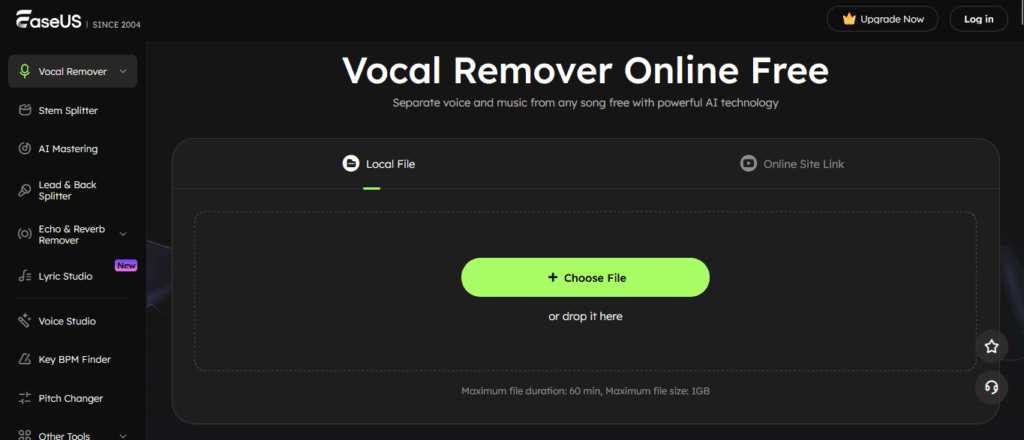
Step 3. Wait for AI music processing and separation.
Step 4. Download the vocal or instrumental track by clicking “Export.”
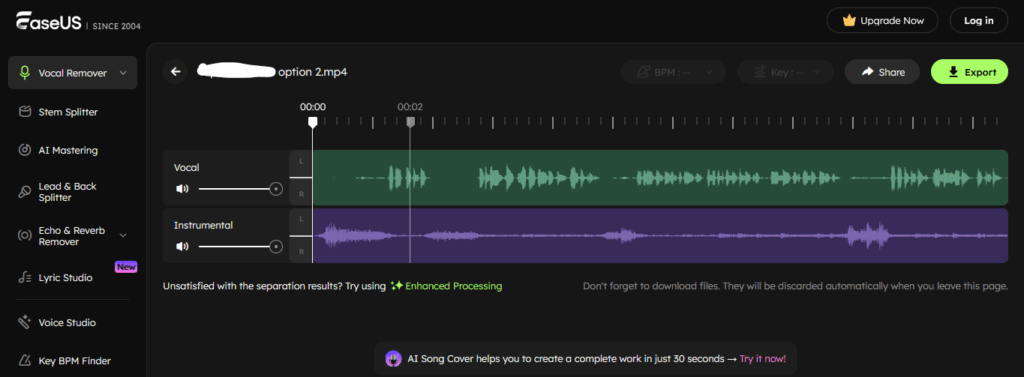
EaseUS enables easy removal of background music while preserving the voice.
- VEED
Professional online video editor VEED removes background music and noise. It cleans sound with one click using AI. Video with wind, traffic, or other undesirable noises benefits from this tool. You can modify background music, add sound effects, and record voice-overs with VEED.
Features
- AI noise reduction powered by Dolby technology.
- Supports many video formats like MP4, MOV, and AVI.
- Includes tools to add music, sound effects, and voiceovers.
- Works entirely online with a clean, simple interface.
Step-by-Step Guide:
Step 1. “Upload” or drag your video to VEED’s editor.
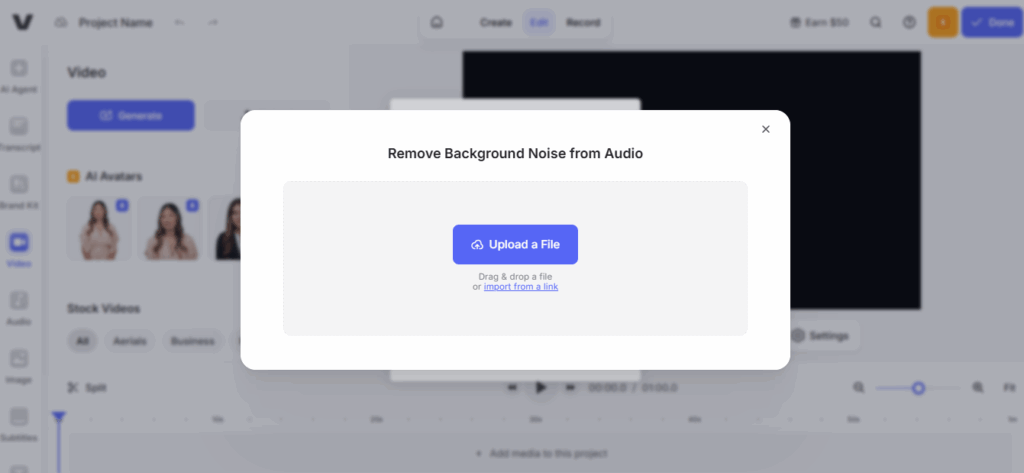
Step 2. “Mute” Audio by right-clicking the video track.
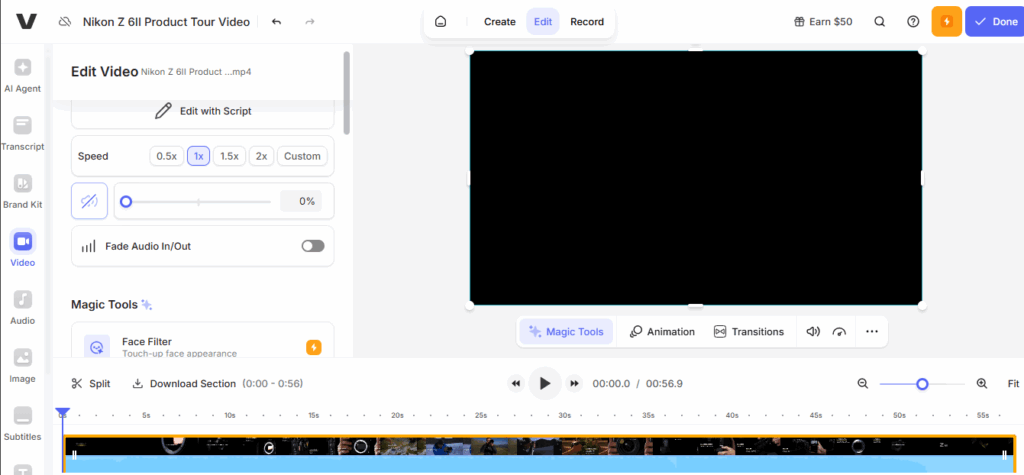
Step 3. Save your file by clicking “Done” and “Export Video.”
For fast noise removal and quality audio editing, VEED is ideal.
- Canva
In addition to its design features, Canva also offers a free online video editor. Canva makes video background music removal easy. The format list includes MP4, MKV, MOV, and GIF. Video length is unlimited, but scenes can be up to 10 minutes in length. Social media videos, presentations, and TikTok movies work well in Canva.
Features
- Free online video editor with no time limit for total video length.
- Supports multiple formats like MP4, MKV, MOV, and GIF.
- Allows trimming, cropping, and splitting videos.
Step-by-Step Guide:
Step 1. Visit Canva Video Editor and click “Edit a Video.”
Step 2. Upload your video by clicking “Uploads.”
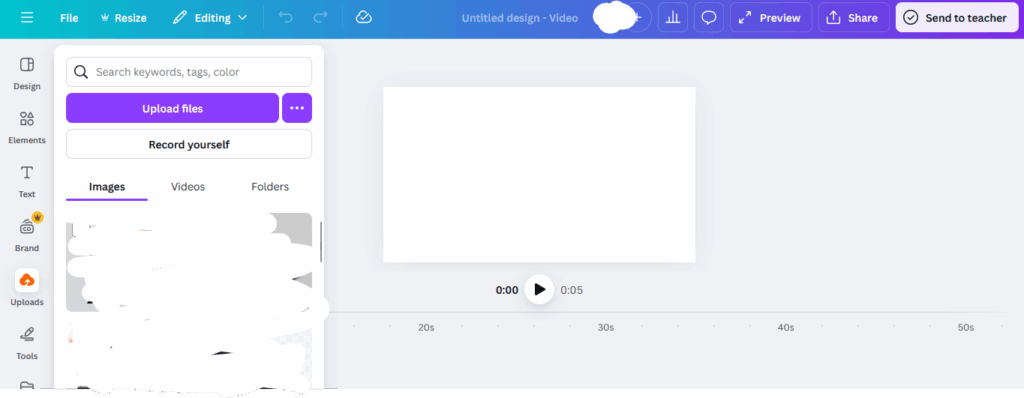
Step 3. “Mute” the audio by clicking the top “Volume” icon.
Step 4. Download the video after clicking “Share.”
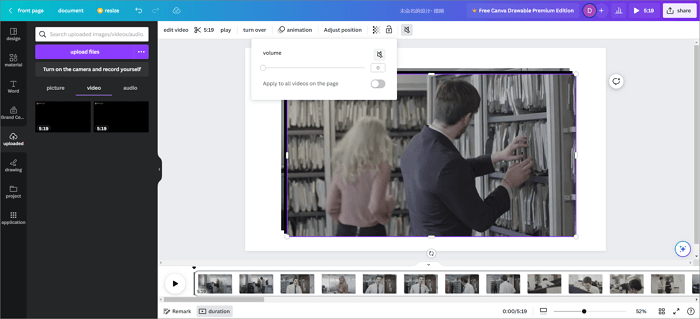
Canva removes sound quickly and well without compromising video quality.
- Media.io
Media.io separates voice and music easily using AI. The browser-based tool removes background music in seconds. This tool is ideal for music, audio, and video soundtrack cleanup. Media.io is stable and supports files of unlimited size.
Features
- AI algorithm separates vocals from music quickly.
- Works with various audio and video formats.
- Smooth batch processing for multiple files.
- Stable online performance with minimal crashes.
Step-by-Step Guide:
Step 1. Visit Media.io in your browser.
Step 2. Drag & drop or select “Click to Upload” to upload your video.

Step 3. The software will automatically analyse the sound clip to reduce noise and give an outcome.
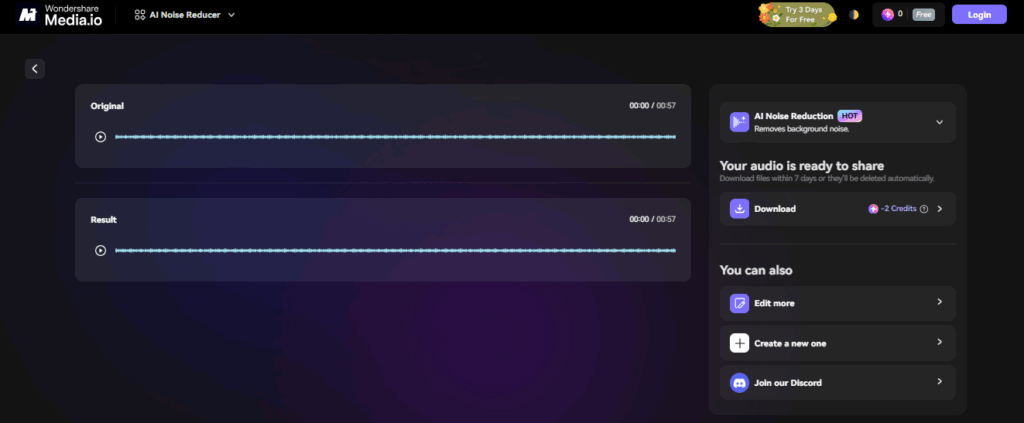
Step 4. If necessary, download and sync the clean audio with your video.
Media.io is fantastic for fast, accurate audio separation.
- Flixier
The sophisticated online editing software Flixier reduces background noise. AI cleans and clarifies sounds. You can edit videos, reduce audio, and post to social media. Flixier is ideal for podcasters, vloggers, and artists who need excellent sound.
Features
- AI audio enhancement reduces noise.
- Supports Google Drive, Dropbox, and device uploads.
- Allows precise audio trimming and editing.
- Contains royalty-free music and voiceover tools.
Step-by-Step Guide:
Step 1. Go to Flixier and click “Get Started.”
Step 2. Click “Upload video” from computer or cloud.
Step 3. Drag your video to the timeline, right-click, and “detach audio.”
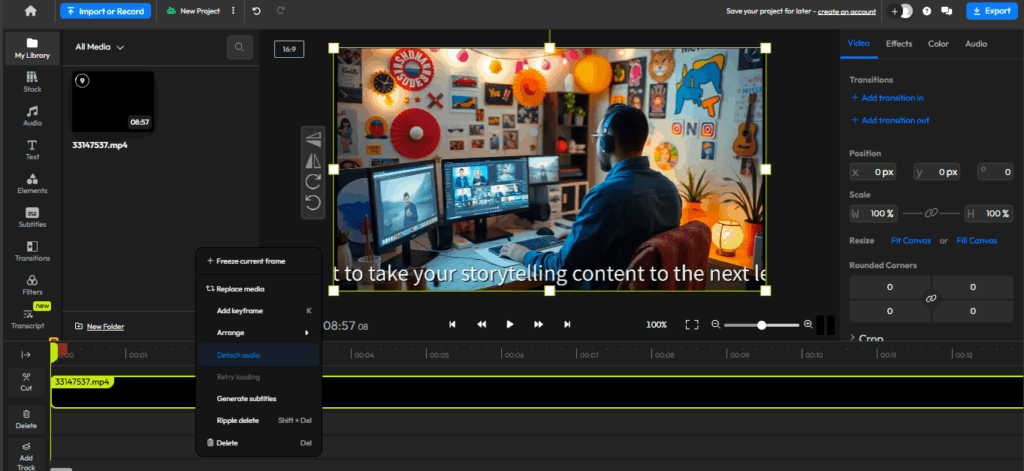
Step 4. Remove the audio track or use “Enhance Audio > Reduce Background Noise.”
Step 5. Click “Export” to save the cleaned video.
Creators who need noise removal and comprehensive editing tools will love Flixier.
- Clideo
Clideo is a basic video and audio mute tool. MP4, AVI, and MOV formats are supported, and sound can be removed with a single click. It works on phones, tablets, and PCs without the need for installation.
Features
- Easy, rapid internet tool.
- Supports MP4, WMV, MOV, and others.
- Strongly secures submitted files.
- Compatible with Windows, Mac, Android, and iOS.
Step-by-Step Guide:
Step 1. Visit the Clideo website.
Step 2. Upload your video using “Choose File,” upload from Google Drive, Dropbox, or Google Photos.
Step 3. Be patient while the tool removes the sound.
Step 4. Download the muted video.

For easy audio removal without editing, Clideo is great.
Conclusion
Video background music removal no longer requires pricey software or advanced editing. Anyone can clean audio with a few clicks using free online applications like EaseUS Online Vocal Remover, VEED, Canva, Media.io, Flixier, and Clideo. The platforms are quick, secure, and easy to use on any device.
These strategies produce clear outcomes for karaoke, social media, and sound quality. Powerful AI and extensive format support distinguish EaseUS Online Vocal Remover. Try any of these tools today to make professional-sounding videos with cleaner, more polished results.
Delete Background Music from Video Online Free FAQs
- How do I remove background music from audio?
Use online audio editors or vocal removers. Upload your file, use the vocal removal, and let the AI separate the music. Check the output and download clear audio. EaseUS Online Vocal Remover is fast and supports numerous formats, making it easy and accurate.
- What app removes background noise from video?
EaseUS Vocal Remover utilizes AI to accurately isolate the vocals from the rest of the audio for creating karaoke, remixing, or simply getting high-quality audio. VEED, Media.io, or mobile apps like Noise Reducer are excellent tools for eliminating background noise in your videos. The process is quick and requires only one tap for noise removal.
- What is the best app to remove background noise from video free?
Several free apps work. Audacity rocks for Mac and Windows. iMovie suits Macs. However, for a cleaner audio, EaseUS Online Vocal Remover cleans background noise quickly using its AI-powered technology in no time.